
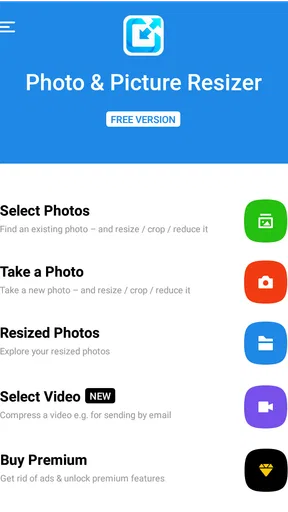
Photo & Picture Resizer
Farluner Apps & GamesPhotography
4.57.54K Reviews
- Version
- 1.0.374
- Installs
- 10.00M
- Age Rating
- Everyone
Screenshots
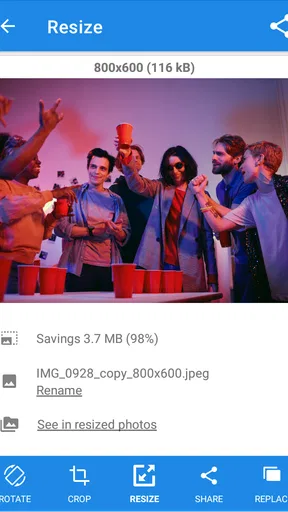
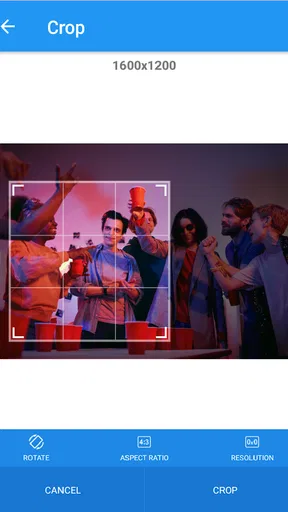
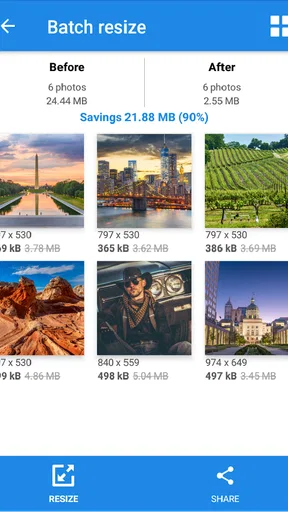
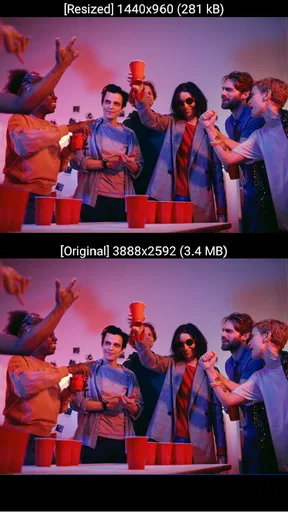
Our Review of Photo & Picture Resizer
 Analysis by Appyee
When I need to prepare a group of photos for sharing, uploading, or sending, I usually do not need a full editing suite. I need a quick way to make images smaller without turning the task into a design project. That is where Photo & Picture Resizer makes sense. It is a free photography app from Farluner Apps & Games, focused on changing image resolution and reducing file size rather than adding filters or building elaborate compositions.
After using it as a practical image-preparation tool, I see its main value in the handoff stage of a creative job. The picture may already look right, but its dimensions or file weight may be inconvenient. This app helps bridge that gap. It is especially useful when I have several images to process at once and want a straightforward workflow instead of opening each file in a more complicated editor.
The app has a 4.5 average from around 268 thousand ratings, with roughly 7.5 thousand written reviews and over 10 million installs. Those figures suggest that its simple purpose has broad appeal. It is free to download, rated Everyone, and the current version is 1.0.374. Optional in-app purchases range from $0.99 to $39.99 per item, so I would still check the purchase screen carefully if I wanted anything beyond the basic free experience.
Starting with the right image and the right target
The most important decision happens before resizing: I first decide where the image is going. A photo intended for a message, a form upload, a social post, or a printed document may each need a different balance between dimensions and file size. Simply choosing the smallest available output can make the picture look soft, while keeping the original resolution can create an unnecessarily heavy file.
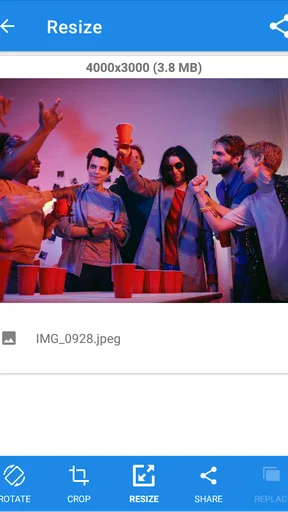
Photo & Picture Resizer is useful because it treats that practical problem as the main task. I can start from an existing picture rather than rebuilding the image from scratch. That makes it a good companion for phone photography, screenshots, scanned documents, product photos, and images exported from another editing app.
I would not approach it as a replacement for a camera editor. It is not the place I would expect to correct exposure, remove distractions, retouch skin, or create layered artwork. My preferred workflow is to finish the creative editing first, save a high-quality master, and only then use this app to prepare a copy for delivery. That separation protects the original and keeps resizing from becoming an accidental destructive edit.
A useful habit is to create a clear distinction between the master image and the handoff version. If I am preparing pictures for a client, a listing, or a family archive, I keep the untouched original and resize a duplicate. This matters because a reduced image is convenient for sharing but may not be suitable for later cropping or printing. The app is strongest when it is used as the final preparation step, not as the only copy of an important photograph.
Choosing dimensions without guessing
Resolution is not merely a technical number. It determines how much room remains for cropping, how sharp an image appears on a larger screen, and how quickly a file can move through a slow connection. I prefer to decide the maximum dimension I actually need instead of repeatedly shrinking the same file through several rounds.
For example, if I am sending a set of event photos to someone who only needs to view them on a phone, I can make a delivery-size batch rather than attaching the camera originals. If one image will later be printed or edited again, I treat it differently and preserve a larger version. This is a small workflow distinction, but it prevents the common mistake of making every image equally small just because one destination has a limit.
The batch approach is one of the app’s most useful qualities. Processing a collection together is more consistent than opening a general editor repeatedly and applying slightly different settings by hand. It also reduces the mental overhead of preparing a folder of images. I can think about the destination once, apply the same intention to the group, and then inspect the results.
What the app is and is not changing
When I resize a photo, I am changing its pixel dimensions and usually reducing the amount of information the file carries. That can lower storage and transfer demands, but it cannot improve a blurry original. If the source is already soft, resizing will not restore detail. Likewise, reducing a screenshot may make small text harder to read, so documents deserve more cautious treatment than casual snapshots.
This is also why I avoid using the smallest possible output for images containing fine lines, labels, receipts, or interface text. A visually simple photograph can tolerate a stronger reduction than a technical diagram. My practical test is to open one processed image at the size the recipient will likely use and inspect the important detail before committing to the whole batch.
Making a batch efficiently
The app’s working role becomes clearer when I use it as a production utility. Imagine I have taken a series of photos for a small online listing. The pictures look acceptable, but the originals are inconvenient to upload and too large to send together. Rather than editing each one individually, I select the group, choose a suitable output direction, and create smaller copies for the listing workflow.
That scenario shows why a dedicated resizer can be more comfortable than a general photo editor. A full editor offers more creative control, but those extra tools can slow down a repetitive job. Here, the limited scope is an advantage: I am less likely to wander into filters, adjustments, or decorative features when all I need is a usable export.
I also find batch processing helpful for social planning. If I have a folder of images from one outing, I can prepare a practical sharing set while leaving the original folder intact. The same idea works for sending images to a printer, attaching them to a form, or moving them into a cloud folder where storage space matters. The best setting depends on the destination, but the workflow remains predictable.
One non-obvious benefit is consistency across a group. Even when the images come from different moments, giving them a common resizing treatment makes the final folder easier to manage. This does not make their composition or color consistent, of course, but it avoids a mixture of enormous originals and tiny compressed copies that complicates delivery.
Where the simple workflow needs care
Batch convenience can also hide mistakes. If I select the wrong folder or choose an unsuitable output size, the same decision may affect every image. I therefore test one representative picture first, especially when the batch includes portraits, text-heavy images, and wide scenes together. A setting that looks fine on a landscape may make a receipt unreadable.
I also pay attention to the difference between reducing resolution and reducing file size. They are related, but they are not identical goals. A smaller pixel count may solve an upload problem, while a file-size limit may require a different balance. If the destination gives me a strict maximum, I verify the resulting file rather than assuming that a particular dimension will always meet it.
Another practical limitation is that a resizing tool cannot make every platform behave the same way. Some services recompress images after upload, while others crop or reinterpret them. I use the app to create a sensible source file, but I still preview the final result in the destination service. That extra check is important for images where framing matters.
Iteration without damaging the source
Good image preparation is often iterative. I may make one version for quick messaging and another for a website or document. The safest approach is to return to the original master for each new version rather than shrinking an already reduced copy. Repeated reduction can gradually remove detail and make it harder to judge whether a problem came from the source or from the export chain.
For that reason, I treat the app as a version-making tool. I keep the original in its own location, create a clearly named delivery copy, and compare the result against the original before sharing it. Naming is surprisingly useful here: a filename that identifies the destination or purpose helps me avoid sending a low-resolution preview when I meant to send a larger handoff.
I would also avoid using a single aggressive setting for mixed creative work. A portrait may remain pleasant after reduction, while a photo of artwork, a product label, or a handwritten note may need more pixels. When a batch contains different image types, I divide it into smaller groups. That takes a little longer, but it produces a more reliable result than forcing every image through one compromise.
This is where the app’s focused design has a clear trade-off. It makes routine changes less intimidating, but it does not replace judgement. The user still has to understand the destination, examine the output, and decide whether convenience is worth the loss of detail. I appreciate tools that remove repetitive work, but I do not want them to pretend that one setting is perfect for every image.
Preparing the final handoff
For delivery, I judge the output in three ways: does it still look good, is it practical to move, and can the recipient use it without extra work? A resized photo that looks fine but is saved somewhere confusing is not a successful handoff. Likewise, a tiny file that transfers quickly but makes text unreadable has solved the wrong problem.
In everyday use, I would choose this app when the recipient needs a convenient copy rather than the full original. That includes sending a group of vacation pictures to relatives, attaching images to an online request, or preparing product photos before uploading them. The app’s purpose is particularly clear when the original files are much larger than the destination requires.
I would choose a different tool when I need precise color management, layered editing, advanced cropping, object removal, or detailed export controls. A professional creative workflow may need a desktop editor or a more comprehensive mobile application. Those alternatives take more time, but they are better suited to decisions about appearance rather than just dimensions and file weight.
I would also skip this app as the main solution for someone who wants to organize a large photo library, back up originals, or perform serious retouching. Resizing is one useful stage, not a complete media-management system. It works best alongside the camera, gallery, cloud storage, or editing tools I already use.
The minimum operating-system requirement is Android 8.0, which makes the app accessible on many still-used Android phones while setting a clear boundary for older devices. Since the app is in the photography category and carries an Everyone rating, its intended audience is broad. Still, beginners should remember that a simple interface does not remove the need to keep originals and check output quality.
Who will get the most from it
I recommend it most strongly to people who regularly send groups of images and find that their phone’s originals are too large for the task. It is also a good fit for small sellers, students, volunteers, parents, and anyone who prepares visual material without wanting to learn a full editing program.
It is less suitable for photographers whose main concern is preserving maximum detail, creators who need a carefully controlled publishing pipeline, and users who expect one app to handle capture, editing, cataloging, backup, and export. For those people, a dedicated resizer may feel too narrow. That narrowness is not a flaw by itself; it simply defines the job the app can reasonably do.
The free price makes experimentation easy, although optional purchases mean I would review any paid prompt before confirming it. I would start with a small, unimportant batch, learn how the workflow handles my files, and only then use it for important material. That approach is sensible with any tool that creates copies in bulk.
A practical creator verdict
My overall impression is that Photo & Picture Resizer succeeds by staying focused. It does not try to turn a quick production task into a complete editing session. When I need to convert a set of finished images into versions that are easier to upload, send, or store, its purpose is immediately understandable and its batch-oriented workflow can save real time.
The strongest result comes from using it deliberately: finish creative edits elsewhere if necessary, preserve the original, test one image, select a setting based on the destination, and inspect the processed copies before delivery. Those steps make the app more dependable than simply choosing the smallest option and hoping for the best.
My main reservation is not about its basic usefulness but about expectations. It cannot rescue weak photography, replace advanced editing, or decide the correct quality level for every destination. Users who want fine creative control will outgrow it, while users who only need occasional resizing may find the phone’s built-in sharing options sufficient.
For my own workflow, I would keep it available as a practical finishing tool rather than a primary editor. The combination of free access, a broad audience, and support for batch image preparation makes it worthwhile for routine handoffs. If your recurring problem is “these photos are good, but they are too large to deliver,” this is the kind of focused tool I would recommend trying first.
Verdict
Strengths of Photo & Picture Resizer
- Batch resizing lets you process several photos in one session.
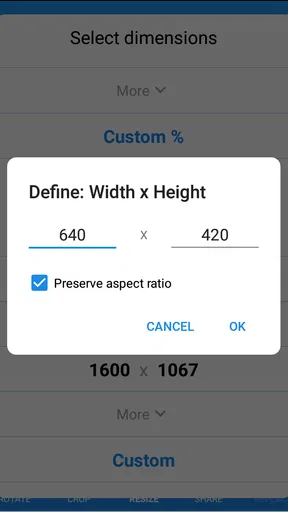
- Custom width and height controls offer precise output dimensions.
- Supports common image formats for flexible sharing and storage.
- Quick sharing options make resized images easy to send or post.
- Helpful for reducing photo sizes before uploading or emailing.
Limitations of Photo & Picture Resizer
- Some advanced tools may require an in-app purchase.
- Resizing can reduce image quality when using very small dimensions.
- The interface may feel dated compared with newer photo editors.
- Large batches can take longer on older or low-memory devices.
- Ads may interrupt the experience in the free version.
Similar Picks in This Category
View All
Google Photos
Google LLC4.4

Gallery
Google LLC4.2

Picsart AI Photo Editor, Video
PicsArt, Inc.3.9

B612 AI Photo&Video Editor
SNOW Corporation4.1

BeautyPlus-Selfie Photo Editor
PIXOCIAL TECHNOLOGY (SINGAPORE) PTE. LTD.4.5

Remini - AI Photo Enhancer
Bending Spoons4.1
Frequently Asked Questions
What is Photo & Picture Resizer used for?
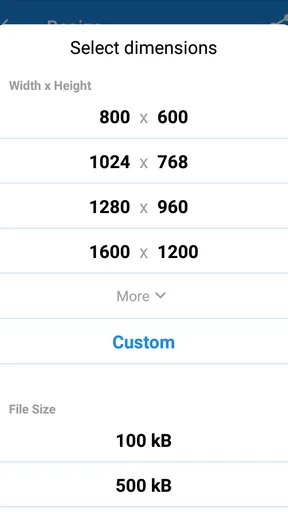
Photo & Picture Resizer is designed to reduce or enlarge images quickly on a mobile device. It is useful when you need to make a photo smaller for email, messaging, social media, online forms, or websites. The app lets you choose a preset size or enter custom dimensions, making it practical for both everyday sharing and more specific image requirements.
Does Photo & Picture Resizer reduce image quality?
Resizing an image can affect its quality, especially when a very large photo is reduced significantly or a small image is enlarged. In my experience, the app generally preserves good visual clarity when using reasonable dimensions, while also helping lower the file size. Results depend on the original image, the selected resolution, and how aggressively the photo is compressed.
Can I resize multiple photos at the same time?
Yes, Photo & Picture Resizer supports batch processing in versions that include the multi-image feature. This allows you to select several pictures and apply the same resizing settings without opening and editing each file individually. It is particularly convenient for preparing a group of photos for upload, sharing, or storage, although available batch options may vary by platform and app version.
What image formats does Photo & Picture Resizer support?
The app primarily works with common photo formats used on Android and iOS devices, such as JPEG and PNG. Support can depend on the operating system, the source file, and the version installed from the app store. If you are working with less common formats, it is worth checking the app’s current store description before downloading, as some files may need to be converted first.
Is Photo & Picture Resizer free to download and use?
Photo & Picture Resizer can generally be downloaded for free, but the free version may include advertising or limits on certain tools and options. Some features, such as an ad-free experience or additional controls, may require an in-app purchase. Before installing, review the current store listing and permissions so you understand which functions are available without payment on your particular device.
